NetMonitor: Ihr Netzwerk, endlich sichtbar - KMService - KM Service - Zeitmessung und Software für Sportveranstaltungen
Pagine indirette Windows
Router, PCs, Drucker, Kameras, Smart-TVs, NAS-Laufwerke, Access Points, Switches: Die meisten Haushalte und Büros haben heute Dutzende von Geräten im selben Netzwerk – und kaum jemand weiß genau, wie viele es sind, wo sie sich physisch befinden oder ob sie noch erreichbar sind. Wenn etwas nicht mehr funktioniert – der Drucker reagiert nicht, die Kamera geht offline, ein PC verschwindet aus dem Netzwerk – beginnt das Rätselraten: Kabel werden wahllos gezogen, "der Techniker" wird angerufen.KNetMonitor wurde genau für dieses Problem entwickelt: eine schlanke Anwendung, die das lokale Netzwerk scannt, verbundene Geräte automatisch erkennt und sie auf einer interaktiven, immer in Echtzeit aktualisierten Karte anzeigt. Kein Rätselraten mehr: Fällt ein Gerät aus, sehen Sie es sofort – ein optionaler Alarmton kann Sie sogar benachrichtigen, wenn Sie gerade nicht auf den Bildschirm schauen.
Kompatibilität
- Windows 11
- Windows 10
- Keine Installation erforderlich: eine einzige ausführbare Datei
- Läuft lokal — keine Daten werden an externe Server übertragen
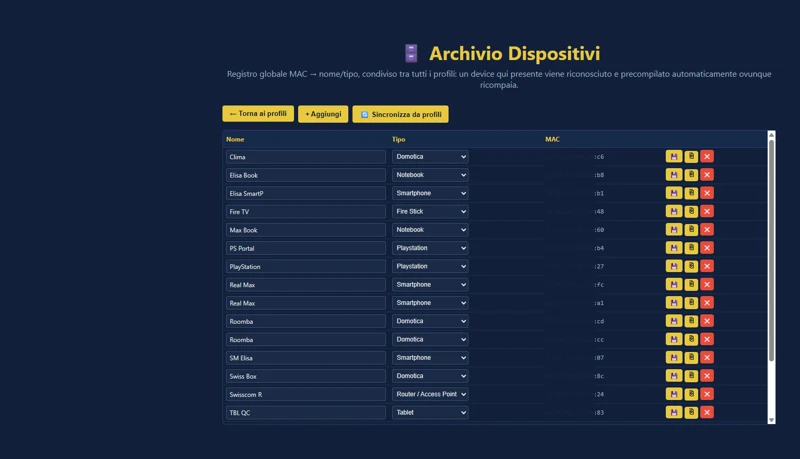
Für alle, die mehrere Netzwerke verwalten – einen Standort, eine Zweigstelle, ein Labor, ein Testnetzwerk – unterstützt KNetMonitor mehrere Profile: jedes mit eigener Konfiguration, eigenen Geräten und eigener Karte, auswählbar über einen einzigen Startbildschirm. Damit Sie dieselben Geräte nicht jedes Mal neu benennen müssen, wenn sie in einem anderen Netzwerk wieder auftauchen, erkennt ein globales Archiv bereits gesehene Geräte automatisch anhand ihrer MAC-Adresse und ruft sofort Namen und Typ ab.
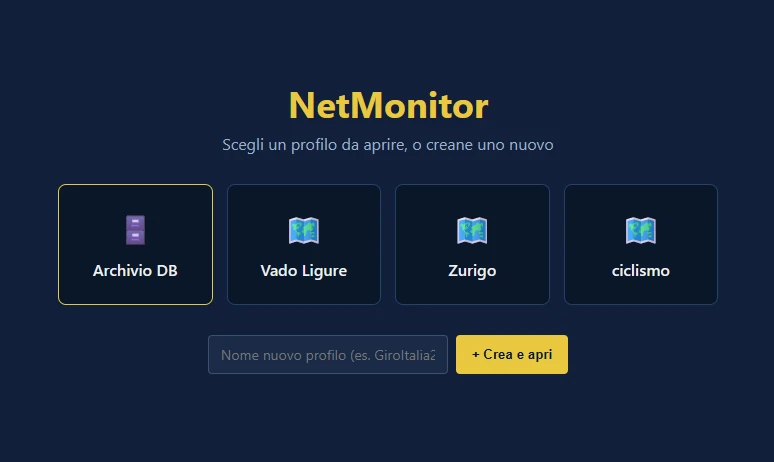
Globale Liste zuvor gescannter Geräte
Das automatische Layout ist nur der Ausgangspunkt. Jedes Symbol lässt sich genau dorthin ziehen, wo es hingehört – zum Beispiel neben den tatsächlichen Raum, in dem sich das Gerät befindet – und die Position wird gespeichert. Sie können rechteckige Zonen zeichnen, um die Geräte einer Abteilung, eines Stockwerks oder eines Bereichs visuell zu gruppieren, und Verbindungen zwischen Geräten einzeichnen, um darzustellen, wie sie tatsächlich verkabelt sind: eine durchgezogene Linie für ein Netzwerkkabel, gestrichelt für eine WLAN-Verbindung, dicker für Glasfaser.
Das Ergebnis, nach wenigen Minuten Anordnung, ist ein auf einen Blick verständliches Netzwerkdiagramm – etwas, das normalerweise professionelle Diagramm-Software erfordern würde, hier jedoch automatisch aus den echten Geräten Ihres Netzwerks generiert wird.
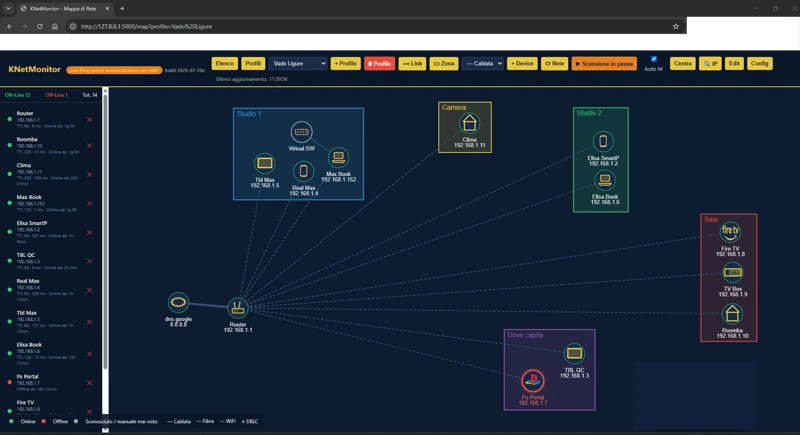
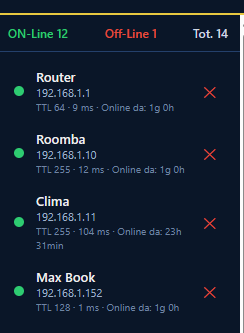
Ein ausklappbare Geräteliste mit aktuellem Status
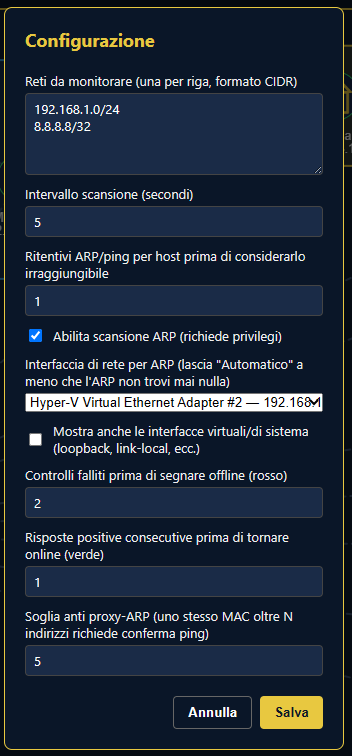
Vom Benutzer frei konfigurierbare Scan-Parameter; jedes Profil kann unabhängig eingerichtet werden
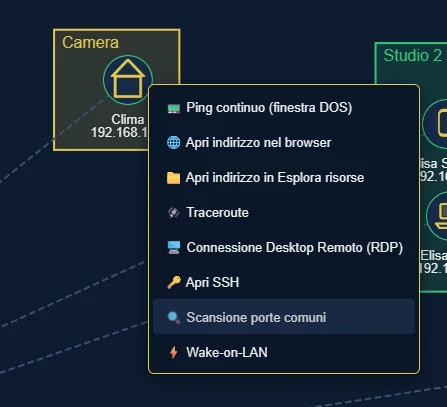
in Doppelklick auf ein Gerät öffnet sofort seine wichtigsten Informationen: IP-Adresse, MAC-Adresse, Betriebssystemtyp (abgeleitet aus dem Ping-TTL), Antwortzeit, wie lange es bereits online oder offline ist. Ein Rechtsklick öffnet ein Menü mit den gängigsten Diagnose- und Fernverwaltungsfunktionen: einen kontinuierlichen Ping in einem eigenen Fenster starten, eine Traceroute ausführen, die gängigsten Ports scannen, um schnell zu sehen, welcher Dienst auf diesem Gerät läuft, eine Remote-Desktop- oder SSH-Verbindung öffnen, auf Netzwerkfreigaben zugreifen oder sogar einen schlafenden PC per Wake-on-LAN-Paket aufwecken.
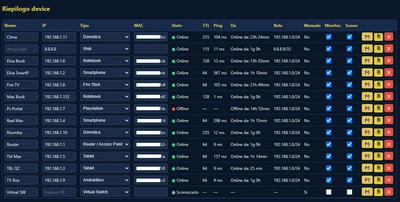
Jedes im Netzwerk gefundene Gerät kann bequem über eine mit der Datenbank (des aktiven Profils) verknüpfte Tabelle bearbeitet werden